Mostrando entradas con la etiqueta VMware ESX/ESXi. Mostrar todas las entradas

18 agosto 2016

How to revert ESXi to a previous version

In case you need to revert your ESXi to a previous version, there is an option to do that trough the DCUI (Direct Console User Interface):


  1. In the console screen of the ESXi host, press Ctrl+Alt+F2 to see the Direct Console User Interface (DCUI) screen.
  2. Press F12 to view the shutdown options for the ESXi host.
  3. Press F11 to reboot.
  4. When the Hypervisor progress bar starts loading, press Shift+R. You will see the warning:
    Current hypervisor will permanently be replaced
    with build: X.X.X-XXXXXX. Are you sure? [y/n]
  5. Press Y to roll back the build.
  6. Press Enter to boot.

Don´t forget to backup your configuration before the revert.

20 julio 2015

vRealize Operations Manager 6: Resource Capacity Concepts

One of the primary things you must learn to use  in the correct way the vROps Capacity Planning is understand the capacity concepts.


An image is worth a thousand words:


Having this concepts crystal clear, the next lesson is the 3 capacity models:

  1. Demand based > dynamic
  2. Allocation based > static
  3. combination of demand and allocation models 

With the first method, demand, the resources are assigned to the objects based on their demand and with the second mode, allocation, the resources are assigned to objects in static way.
Usually the allocation model is used for production environments (and the other both for test environments). The main objective is maximize the density optimizing the use of the resources based on demand.
The allocation model reduce the risk of insufficient capacity based on teh assigned resources for objects.

See an example how a trend analisys is different from a demand to an allocation based model:


20 abril 2015

VMware vSphere: how to create tags - Part II with PowerCLI

On the Part I post we learn how to add a Tag and a Category trough the GUI interface with vSphere Web Client, now, let´s take a look about how to do it with PowerCLI.


Remember that Tags are a new feature available from vSphere 5.1 and the cmdlets are available from PowerCLI 5.5, so, we need at least a vCenter on vSphere 5.1 and the PowerCLI 5.5 installed but much better use las version PowerCLI 6 (not all cmdlets are present in PowerCLI 5.5 initial release)

Use this to verify the version you have installed: 
PowerCLI C:\> Get-VIToolkitVersion


Now with the New-Tag we can review the Tags configured, and with "New-TagCategory" create a Category and after with "New-Tag" the Tag


Now, we are ready to assign Tags to objects, in this case to Virtual Machine:


It´s time to verify it trough Web Client:


Something i didn´t mention jet, is that you can assign multiple Tags to an objet in vSphere , in our case to a Virtual Machine. It means that you can for example tag a VM with the "DDBB_tag" because it´s a SQL DDBB, and Tag it with "Cluster_tag" because it´s a Microsoft Cluster, or with another tag like "Test_tag" because it´s a DDBB SQL Cluster from the Lab Environment.

Why multiple Tags? For vROps it will be useful to create custom groups using different Tags criteria and fix different policies if its a VM from DDBB servers, or if its a VM from Lan Environment..... one VM could be placed in different Custom Groups at the same time :-)


First Part of this post: VMware vSphere: how to create tags - Part I


15 abril 2015

VMware vSphere: how to create tags - Part I

What is a tag?

A tag is a label that you can apply to objects in the vSphere inventory. Tags allow you to attach metadata to objects to make them more sortable and searchable.

Tags are grouped into categories, which define how the tags can be applied to inventory objects.


What is a category?

A category groups together related tags in the vCenter Server inventory.
When you create a category, you specify whether multiple tags in that category can be assigned to a given object at one time, or whether only one tag can be assigned to an object at a time. For example, a category called Priority might contain the tags High, Medium, and Low, and be configured to allow only one tag in the category to be applied to an object at a time.

You also specify whether tags in a category can be applied to all objects, or only to specific object types, such as hosts or datastores.


...yes, this is just a Copy&Paste from the original explanation from tags and categories on the VMware documentation....but i´m sure that no one read it...or at least...just a few docu-addicts :-)

Once we have a crystal clear the idea about what Tags and Category are....let´s show how to create them:

continue reading....

02 enero 2015

vRealize Operations Manager 6 - Part I - OVA deployment


See next step Part II  - vRealize Operations Manager 6 - Part II - Express Installation
See next step Part III - vRealize Operations Manager 6 - Part III - Manage Solution

.

24 diciembre 2014

vRealize Operations Manager 6 initial deployment


vRO is finally here (old vCOps). There is a lot of changes in the new GA so try to review the releases notes and the new documentation:


https://www.vmware.com/support/pubs/vrealize-operations-manager-pubs.html


There is a new sizing guide with 4 new sizes from Extra-Small to Large 
http://kb.vmware.com/selfservice/microsites/search.do?language=en_US&cmd=displayKC&externalId=2093783

The main different with the las releases is that right now there is only one VM instead the older 2 VM in the the vApp version.
The first screen when you deploy the new vRO6 is a new helpfully wizard for an Express Installation, a New Installation(clustering) or Expand an Existing Installation adding new nodes:


CONTINUAR

09 octubre 2014

Cambiar la bbdd de #VMware #vSphere de SQL a ORACLE

Para apuntar la bbdd de VMware vSphere vCenter de un SQL a Oracle o viceversa, es necesario modificar el registro, con el servicio de vCenter previamente parado....claaaaaro!

Los parametros ha cambiar en la ruta
"HKEY_LOCAL_MACHINE - SOFTWARE - VMware, Inc. - VMware VirtualCenter-DB":


En el siguiente hilo se trata este tema: https://communities.vmware.com/thread/308260 donde podeis encontrar los pasos a seguir:


Then go to registry and browse to 
HKEY_LOCAL_MACHINE - SOFTWARE - VMware, Inc. - VMware VirtualCenter - DB

You will see 1,2,3,4,5.  Change them as follows:
1. Should be the name of your ODBC Connection name.
2. This is your oracle username you use.
3. This is for your password.  We can generate a hashed version of your password later, so don't touch.
4. This is the ODBC driver.  You should change it from "SQL Native Client" or whatever it is to "Oracle"
5. This is the version.  You should be able to leave this.

Now in cmd prompt run C:\Program Files\VMware\Infrastructure\VirtualCenter Server\vpxd.exe -p
Enter your Oracle password.
Now start your service.  If it starts correctly then all is well.

I have recently moved from Oracle to MSSQL 2008R2.  I opted to create a new vCenter server and migrate all of my data using PowerCLI scripts.  I feel this is a bit cleaner.


24 junio 2014

Use Resource Pool , or not use Resource Pool... that´s the question

Really the question is no about use it or not, it´s more about if you  really know how a Resource Pool works within a cluster environment.

For example, the first rule is NOT deploy VMs and RP holding on the same hierarchy, for example:


The reason is obvious..... look at the Resource Allocation tab from the cluster and review the % shares. If you compare it, the vApp called vCOps has the same % than the RP Normal, and compete for the resources in the same shares.

The next big thing you must review, is how many resources do  you have in each RP, for example, if you have 10 CPUs deployed on the RP Normal, it means that each CPU has 2,1% shares.
In other hand, imagine you  have 5CPUs deployed on the RP Low, which means that each CPU has 2% shares. ¿make sense or not?

Then you have CPU competing with the same % even if they are RP Normal or RP Low... epic fail !!!

Now, imaging that we delete the VM called Test 01, look  now how the % shares change, every element gains % shares but we still have a gap  with the vCOps  vApp.


It could be even more complex a Resource Pool  management  :-)

Imagine now, within a RP  that we deploy 2 VM, one with 1cpu and the other with 2cpu.
In a initial stage with normal shares for each, the VM 1cpu will get 33% shares from the RP Normal and the VM 2cpu will get 66% shares as shown below:


Everything it´s ok? But, before we change the shares for the VM 1cpu and set it to High:


Then, we have now two VM with different Shares, competing with the same 50 % shares. This could be what we try to get changing the shares, but, usually is not the desire situation.

So, be carefully when use Resource Pools in order to have more benefits than anomalies with the results of the % shares calculation...and of  course "don´t use it to organize your VMs within a cluster, use folders!"

20 junio 2014

How to solve the error when enable VUM plugin fails with: "There was an error connecting to VMware vCenter Update Manager server name:443"

When trying to enable the Update Manager Plugin and get this error: "There was an error connecting to VMware vCenter Update Manager :443" , the only thing we need to to is review the logon account for the VUM Service on the Windows Server where it is installed.


Go to Services and change the Log On "This accoun" to the account with rights services for the "VMware vSphere Update Manager Service":


Stop and start the Service and go back to  the Plg-in manager an enable the VUM plug-in:


09 octubre 2013

Do you know what NUMA is? really? - Part 2

Once we have clear the NUMA concept, let´s go review the use on VMware.

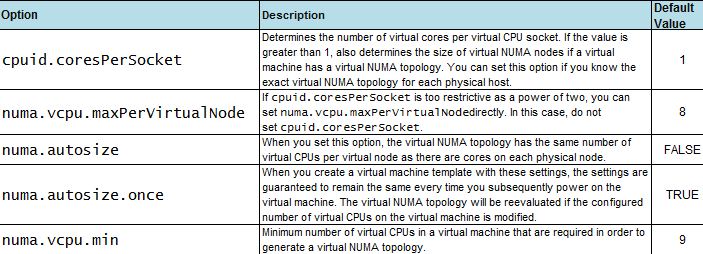
    NUMA topology is avaliable on VMware vSphere 5.0 and later,  hardware version 8 and later, and it´s enable by default when the virtual CPU is greater than 8, but it can be disabled or modify using advanced options (to enable vNUMA on 8 way or smaller VMs, modify the numa.vcpu.min setting) :


    When CPU affinity is enable on a virtual machine, it´s treated as a NON-NUMA client and gets excluded from NUMA scheduling. It means that the NUMA scheduler will not set a memory affinity for the virtual machine to its current NUMA node and the VMkernel can allocate memory from every available NUMA node in the system. It wil increase memory latency and probabbly the value  %RDY will get higher.


An example how NUMA (or vNUMA) works:


With NUMA enable, the Virtual Machine will get vCPU from the same NUMA node (it is, from the same socket)

But.... what´s about the best practices?

1-NUMA-nodes: take your time and the sockets features carefully because some physical cpu´s are composed with 2 underlying sockets. For example some ADM opteron wich have sockets with 12 cores are composed inside with 2 sockets and 6 cores each. It is, a server with 4 sockets 12 cores each.... are a 8 NUMA nodes and not 4.

2-The "default" config on a new VM is "cores per socket" equal to 1, it means that vNUMA is enabled and let the virtual topology to present the best performance to the VM.

3-If the number of "cores per socket" needs to be changed (for licensing purposes for example) the vNUMA will not apply the best config to the VM and will affect to performance. Only you choose a right combination with the vCPUs and cores per socket mirroring the physical NUMA topology on your server (review your NUMA-nodes config)

4-Cluster and DRS or vMotion: "One suggestion is to carefully set the cores per virtual socket to determine the size of the virtual NUMA node instead of relying on the size of the underlying NUMA node in a way that the size of the virtual NUMA node does not exceed the size of the smallest physical NUMA node on the cluster. For example, if the DRS cluster consists of ESXi hosts with four cores perNUMA node and eight cores perNUMA node, a wide virtual machine created with four cores per virtual socket would not lose the benefit of vNUMA even after vMotion. This practice should always be tested before applied. (VMware transcript) "


03 octubre 2013

VMware vCloud: reinstalacion de agentes ESXi de forma manual

     Una vez que asignamos un vCenter (cluster) a un pool de recursos de vCloud, lo primero que se instala de forma automática son los agentes de vCloud sobre los host ESXi que forman el cluster asignado.
     Si por algún motivo estos host se mueven de vCenter, de vCloud al que pertenecen o cualquier otra razón que implique el volver a conectarlos a un vCloud, nos podemos encontrar con un error en la opción de  Estado de "No se puede preparar el host", como vemos en la imagen:


Si pulsamos sobre el mensaje de error podemos ver mas info del error:


Primero verificamos si este host tiene algún agente instalado con el comando

esxcli software vib list | grep vcloud

y luego lo desinstalamos con el comando:

esxcli software vib remove -n vcloud-agent

Como vemos en la imagen:

Volvemos al host desde el vCloud y lanzamos de nuevo la opcion de "Prepar Host":


     Una vez finalizado el proceso ya debería quedar correctamente instalado el agente (podemos volver a comprobarlo lanzando el comando desde esxcli de nuevo). Pero en este caso, nos encontramos con otro error tipico "java.net.UnknownHostException" como vemos en la imagen:


     Este error se debe a configuracion DNS del vCloud director que no es la correcta. Nos conectamos al manager de vCloud desde la consola, vamos a la pestaña Network > Address y configuramos las DNS correctas:


Volvemos a lanzar el "Preparar host" ...y volia!


27 septiembre 2013

VMware vCloud: desplegar vShield App sobre ESXi nested


Antes de entrar en materia, conviene tener claro que es la "nested virtualization": un ESXi en formato nested es un ESXi instalado en una maquina virtual que a su vez esta creada en un ESXi fisico, es decir, "un virtualizador virtualizado":


Partimos de la base de que ya tenemos vShield Manager desplegado y conectado al vCenter.

Vamos al turrón. La forma mas sencilla de desplegar vShield App como parte de la instalación de vCloud Director de VMware, es hacerla en modo gráfico:

-Desde la pestaña vShield del host conectados por el vSphere Client
-Desde la consola de vShield Manager por https (el usuario por defecto es "admin" y la clave "default")

Recordemos que se debe desplegar una vShield App por cada host del entorno, al igual que de vShield Endpoint y de vShield Data Security; pero solo una instancia de vShield Manager por vCenter.

Desde vSphere Client: seleccionamos un host y desde la pestaña vShield marcamos las App a instalar y pulsamos en Install:


Configuramos las ip´s y la red y el Datastore donde queremos que se despliegue la App:
NOTA: tener cuidado con desplegar la App en un host en el que resida vCenter! Podeis hacer un vMotion y luego retomar la instalacio ya que el proceso podria causar cortes de red.

  
Durante le proceso de instalación puede quedarse colgado en este punto, aunque no llega a salir un mensaje de error, podemos ver la consola de la App:


Como vShield App es una maquina virtual desde la consola podemos ver el mensaje de error:


Es aquí donde tenemos el gap para poder hacer funcionar maquinas virtuales que requieran x86-64 CPU instaladas sobre un ESXi virtual (nested): debemos habilitar en las settings del ESXi nested la opción "Expose hardware assisted virtualization to the guest OS" como vemos en la imagen:


Este parámetro se debe cambiar con la mv apagada, reiniciamos el ESXi nested, relanzamos la instalación de la App. Puede que nos encontremos con un mensaje de erro de la instalación y que tengamos que hacer un "uninstall" de la App para limpiar los restos de la instalación fallida y luego lanzar de nuevo el "install"

En otro post veremos como desinstalar agentes de vCloud en los ESXi de forma manual.

Una vez relanzado el install vemos desde la consola como ha terminado la instalación correctamente y nos pide ya directamente el login:


Ya tenemos la App de vShield y de Endpoint desplegada, la App de vShield Data Security debe hacerse por separado. ...voila!


Documentacion, mas de 180 paginas en este pdf ...mucho que leer: 

vShield Administration Guide 5.1 http://www.vmware.com/pdf/vshield_51_admin.pdf :
Indice:
     -vShield Manager 5.1
     -vShield App 5.1
     -vShield Edge 5.1
     -vShield Endpoint 5.1


11 septiembre 2013

Do you know what NUMA is? really? - Part 1

This post is about NUMA concept, because many people speaks about NUMA and don´t know "really" what is or how to use it.

By the way, NUMA is refered to the server platforms with more than one system bus and dedicates different memory banks to different processors. 

See an example with 2 bus (2 sockets) which  access to their own memmory banks internally and  access the rest memmory banks when interleavng is disable on the BIOS :


Each CPU (socket) + local memory = NUMA node

In the past, there were servers with only one bus and the CPU was increased in Ghz  more and more, and the memmory consumtion grow up; it´s teh cause nowadays the servers have more than one bus and you must install the memmory on banks pairing the bus.

If the memory is not populated correctly and distributed equally across the nodes the O.S. stop responding and display a purple screen (PSOD) with the following NUMA node error message:


In a NUMA architecture, processors may access local memory quickly and remote memory more slowly. This can dramatically improve memory throughput as long as the data are localized to specific processes (and thus processors). On the downside, NUMA makes the cost of moving data from one processor to another, as in workload balancing, more expensive.  The high latency of remote memory accesses can leave the processors under-utilized, constantly waiting for data to be transferred to the local node, and the NUMA connection can become a bottleneck for applications with high-memory bandwidth demands.

However, an advanced memory controller allows a node to use memory on all other nodes, creating a single system image. When a processor accesses memory that does not lie within its own node (remote memory), the data must be transferred over the NUMA connection, which is slower than accessing local memory. Memory access times are not uniform and depend on the location of the memory and the node from which it is accessed, as the technology’s name implies.

Memory interleaving refers to the way the system maps its memory addresses to the physical  memory locations in the memory channels and DIMMs. Typically, consecutive system memory addresses are staggered across the DIMM ranks and across memory channels in the following manner:

>Rank Interleaving. Every consecutive memory cache line (64 bits) is mapped to a different DIMM rank.
>Channel Interleaving. Every consecutive memory cache line is mapped to a different memory channel.

disabling Node Interleaving = NUMA active
At least, NUMA options is only avaliable on Intel Nehalem and AMD Opteron 


Next post "Part 2" will review the NUMA use on VMware.

10 septiembre 2013

Sizing Storage

Once you get a clear idea who-are-who on the complicated I/O latency world (review other two post here and here).....you need to think about the general rules and best practices to sizing storage for your IOPS needs.


GAVG (Guest Average Latency) total latency as seen from vSphere
KAVG (Kernel Average Latency) time an I/O request spent waiting inside the vSphere storage stack.
QAVG (Queue Average latency) time spent waiting in a queue inside the vSphere Storage Stack.

DAVG (Device Average Latency) latency coming from the physical hardware, HBA and Storage device.

Bad performance if:

High Device Latency: Device Average Latency (DAVG) consistently greater than 20 to 30 ms may cause a performance problem for your typical application.
High Kernel Latency: Kernel Average Latency (KAVG) should usually be 0 in an ideal environment, but anything greater than 2 ms may be a performance problem.

And now, what about the storage?

The typical workload show on this picture, is for the most of the virtual machines, but, othre types like DDBB are so different and will need special configuration like dedicated raidgroups, ssd cache pools, etc.

It´s so important when planning and sizing a infrastructure to bear in mind not only the storage, it´s a mix with the raid conf, diskt typs (ssd, sas, sata), the storage protocol (FC, FCoE, iSCSI or NFS), networking and conf (cabling, switch, vlans conf), vmware conf (storage adapters, datastores conf (vmfs, rdm, advanced parameters) and so on.


05 septiembre 2013

Visual ESXTOP GUI for VMware

The VMware visualESXTOP is a tool from the VMware Labs to view in windows-mode (hehehe) the results of the cli command ESXTOP and with a friendly option to generate some graphics

1- Download it from: http://labs.vmware.com/flings/visualesxtop  and unzip files:


2- Change PATH on the System Properties - Advanced System Settings - Advanced - Environmet Variables - System Variables: "PATH=C:\Program Files (x86)\Java\jre6\bin;
(Be carefull with this changes , and backup all the the info you modify for a restore case)


3- Start from CMD or click on the "visualEsxtop.bat" and connect to a ESX host or to a vCenter Server from Menu; File - Connect to Live-server, or start it from powercli:


This will open a new window with the GUI:

Now, you can review al the metrics from the diferents tabs:

...And generate some graphics , for example de% CPU ready:


.